
Newsletter to Blog: Blogger’s Friend – The Text Editor

Blogging takes time. It consumes energy and thought. Okay, it’s time consuming. Many bloggers struggle for the first few years to find a way to blog more efficiently. They play with del.icio.us, tagging, bookmarking, Google Notebook and other online note storage tools, mash-ups, social bookmarking, social networking…we’ve done them all in a search to make our blogging life easier and faster.
One of the secret weapons a good blogger needs is a way to record notes, thoughts, ideas, and most of all redundant information in one place. A place easy to access and easy to use. As a long time blogger, my blogging best friend is my text editor. Since all most people do in a word processor is type letters, a good text editor with spell check is as simple to use as a word processor. The trick is to get one that does so much more.
So why not use a word processor? I’ve talked about some of the problems that come with converting word processor and desktop publishing programs into blog content, and writing in a text editor removes a lot of those strange character problems. It also runs fast, requires little space for the program, and is ideal for doing all your web work in one place then transferring it to your blogging program.
For a blogger, web writer and publisher, a good text editor can be your best tool, allowing you to take notes, copy links and information, create an outline, keep a to do list, write posts, and store redundant, frequently-used information.
For this newsletter crew, they needed a tool that would allow them to convert heavily coded content into plain text and search and replace easily. They needed to immediately add redundant links to the national offices as well as local and regional sister groups. They needed to compile information and sort it, as they gathered the parts and pieces of information to fill in their Pages such as About, Contact, Events, and such.
I started them out right by introducing them to the power of a good text editor, allowing them to quickly move from clutter and chaos to form and function with their new blog.
The Perfect Text Editor
If I were to describe the perfect text editor it would have the following features:
- Spell Check
- Multi-level undos and redos – allowing massive undos
- Search and replace, including line breaks and tabs
- Search and replace multiple line content
- Line counter
- Customizable menus and toolbars
- HTML and CSS functionality and help for code recognition, colorization, and coding assistance
- Easy file opening
- Project management for coordinating multiple documents
- Tabbed interface for having multiple documents open simultaneously
- Colorized tabs for quick eye-to-document recognition
- Clipboard or copy and paste board/bin to save everything you cut or copy in a file
- Thesaurus and/or dictionary for helping me think of that word I’m trying to think of
- Ability to search globally, through all open documents, and/or from within a directory of files
- Word count and document statistics
- Everything (or almost) has a keyboard shortcut
- Ability to convert text case to upper, lower, sentence, and initial caps
- HTML/Web features like strip tags, strip HTML and leave links, convert tags in capital letters to all lower case, convert to HTML, clean up email forwards and formatting, etc.
- Preview HTML page in a browser
- Support for programming languages and code as well as DOS, MAC, UNIX, ANSI, ASCII, UNICODE, and others.
- Ability to save in different formats
- Macros and clips for storing and managing redundant code and tasks
- Auto-Replace with full customization to automatically replace abbreviations and “code” words, like the name of my blog in a link. I type LOW and when I hit the spacebar, it converts it to Lorelle on WordPress, so I don’t have to.
- Backup capabilities, for saved files and while working on a file
That’s a lot to ask of a text editor, and goes way beyond the capabilities of many word processor. It took a long time and a lot of research, but I found two that do the job, though only one does most of these.
NoteTab Pro, the Pro version text editor by Fookes Software is a clear winner. In addition to winning many awards, it wins by scoring high on my list. It does most of the things in my list, plus so much more.
The Notetab Light free version is good, but it doesn’t not allow for more than one undo at a time, which can be deadly. The Pro version is inexpensive and very powerful, and I don’t know how I ever blogged without it before. As an alternative, I’d also recommend PSPad. I do not recommend using the Windows Notepad or Wordpad.
Within a two minute demonstration of NoteTab Pro to the newsletter editing team, they thought they’d died and gone back to WordPerfect heaven. Yes, for many, WordPerfect was the perfect writing tool, but now, it’s buggy and lacks support and is being beaten down by corporations buying into the Microsoft-only myth.
Back to the point, they fell in love with the power of NoteTab Pro and saw the benefits of using the text editor right off the top.
The Text Editor File List
I first set them up with four files:
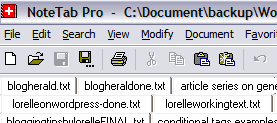
- Redundant Link List
- Blog Ideas
- Notes
- Blog Content
The Redundant Link List
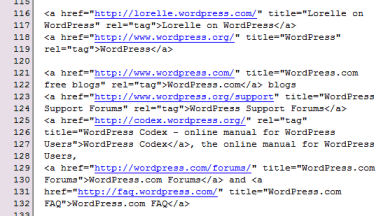 The file for the redundant link list, which they named “links.txt”, we started a list of the redundant links that a blog usually has. Since the newsletter had no links in the documents, we were, literally, starting from scratch.
The list included links to the main offices/headquarters, regional and local sister-chapters, similar organizations often referenced, business bureaus and offices for training and consultancy, and related industries.
One of the surprises to the group was how often they should link to their own blog in their blog posts. I explained that an occasional reference to themselves with the link to their blog helped visitors reading their blog in feed readers to link directly to the front page. Also, if their blog is scraped or the content used by copyright violators, the theft would be traceable through their incoming referral link statistics.
Then they started adding internal links, links to their Pages and frequently cited posts such as the Contact Page, About, Membership Information, Committees, and various reports. As they got going, they found they repeated needed to link to that month’s meeting minutes, so they added that link to the list for fast referenced copy and pasting.
As the list accumulated, they found it fast and easy to switch back and forth between the content and the links list to copy and paste the links into the content. Why type out or insert the same links over and over again when you can do a quick copy and paste?
Notes and Reminders
A newsletter consists of a template file which the newsletter team uses repeatedly, filling in the blanks and changing and adding information with each issue. Switching to a blog format meant many of the reminders built-into the template file are gone. The newsletter team needed a task list to remind them of what content had to be done each month.
The created a notes and reminders text file with a list of all the things that needed to be done each month in the newsletter. They also included a list of the responsible persons and contact information associated with each task. They got so into this, they started adding deadlines to the task list.
In addition to the normal monthly deadlines, they created an editorial calendar with due dates for other content like articles and articles series the members were now thinking about, inspired by the ease of publishing content on their new blog.
The newsletter team also needed notes to remind them how this blogging thing worked. What buttons or keyboard shortcuts to hit for this and that task, such as CTRL+C for Copy and CTRL+V for Paste. Which heading size to use for which types of headings. Copies of the Treasurer’s Report HTML table. And other bits and pieces of code, notes, and things to do that went into the text file.
Having a reference list to refer to, one that could easily be passed around to all the newsletter members, in a text format they could read in any program, made the transition simple and easy and helped them build a reference file for future newsletter editing teams.
Building Blog Content With the Text Editor
The process of building blog content for their new blog began with two files, the idea file and the blog content file, then later added another text file for backups.
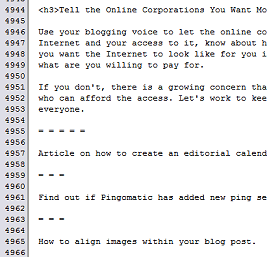 The Idea file is a great way of keeping track of ideas. Personally, I use a simple method of writing down an idea, as complete as I can make it in that moment, even if it is just a few words, or 90% of an article as the idea flows. When it runs out of energy and enthusiasm, I put two blank lines at the end, and a row of equal signs ======== and more blank lines and hit save.
The ideas can easily and quickly be scrolled through when the need arises.

The newsletter team loved this idea. During the conversion process, they came up with a ton of ideas for blog posts from their old content. They were stopping to write these down on pieces of scrap paper. I encouraged them to write them down in the same text editor they were working with, in an idea file. Keep things all in one place. They understood that immediately.
When an idea is ready to develop, copy or cut it from the idea file and paste it into the blog content file, which I traditionally label the name of my blog followed by “working” such as “lorelleonwordpress-working.txt”. This is where the real work happens while researching and developing the article from the idea to a publishable article.
In the text editor, the article is developed, edited, and rewritten. Links are added. Content is spell checked repeatedly.
I’m often working on many articles at a time, especially if I’m working on an article series, so I separate each article with the equal signs row. I do not recommend creating a text file for each article as you may lose track with 3-7 or more files created a week. Keep all the working blog content together in one file unless it is a major article series covering more than a few days.
When the article is ready to publish, I copy it from the saved text file and paste it into the WordPress Write Post panel. The final edit effort happens there.
When published, I take the final article copied just before the final pushing of the Publish button and paste it into the third file, called “lorelleonwordpress-done.txt” or whatever name is appropriate. I include the date it was published and the title. This is a backup of my blog posts. Just in case
With the content deleted from the working content file, it’s time to move onto the next blog post.
The newsletter editor was a bit resistant to the idea of one file for everything, but I explained that it was one file for everything she was working on, not everyone who contributed to the newsletter. They would have their own file system. After a while she enjoyed it as she could work on article one for a few minutes, then think of an idea for article two and drop down and add that, then return to article one, and jump around as she compiled information for each of the articles in development. When ready, it was a simple copy and paste and then move the content into the backup file, clearing a spot in the working file.
A frequent contributor to the newsletter took this one step farther and decided that her idea file and content file would just be one file. Why separate them? She wanted to scroll down and be constantly reminded of her ideas and work in progress as it kept her mind active and imagination working overtime. It’s a flexible system so use whatever works for you, I told her.
The Text Editor is My Blogging Notebook
One member of the newsletter team enjoyed setting up their text editor files so much, she told me, “My text editor is my blogging notebook. It makes it so easy to keep everything in one place and then transfer the finish product right to the blogging program.”
That’s exactly the reason why a good text editor can be a blogger’s best friend.
A newsletter is a communications tool. Turning it into a blog meant opening up a wide range of communications possibilities that goes beyond a printed or emailed newsletter. In the next issue, I’ll talk about the benefits, pluses and minuses, of a blog as a communications tool for a former print newsletter producing team.
Converting a Newsletter Into a Blog Series
- Converting a Newsletter Into a Blog
- Newsletter to Blog: Turning Article and Reports Into Blog Posts
- Newsletter to Blog: Establishing The Post Categories
- Newsletter to Blog: Converting to Blog Posts Part I
- Newsletter to Blog: Converting to Blog Posts Part II
- Newsletter to Blog: Quoting, Referencing, Citing, and Not Copyright Violating
- Newsletter to Blog: Blogger’s Friend – The Text Editor
- Newsletter-to-Blog: Converting Old Newsletters and The Benefits of Conversion

I’ve used NTP for years and I don’t know how you ever lived without it either :)
My only problem with this program is that it’s official support forum comes in the form of a Yahoo Group.
I have always wondered why bloggers would use a Text Editor instead of logging in and start typing. There’s no need to import/copy the text over and the post can be published by just clicking the PUBLISH button!
But now I know how beneficial it is. But I doubt I’d need another program for blogging :)
BTW, your PSPAD link points to an adult site!
Thanks pelf — it points to the right sight now. ;)
Yikes! How did THAT happen? Thanks Tony!
Pelf: As you can see, a text editor is more than just a place to write your posts. It’s a place to generate ideas and notes that become posts. Other than working with drafts, that’s not something blogging programs can support yet.
My favorite blog editor is Windows Live Writer. To store ideas I first used to use Google Notes but now I use OneNote that comes with MS Office.
Personally I prefer this plain and simple old school text editor: http://home.online.no/~westerma/WestEdit/
So, what do you use now? Know of any good text editors for mac users that will do everything you mentioned in this post. Thanks!
-Mig
There is a list of Text Editors for various operating systems in the WordPress Codex. Not sure which ones do what NoteTab Pro does, but there are some good options out there.
okay, appreciate the quick response. :) Know of any favicon creator resources?
-Mig
Yes, just search for favicon creators. There are a variety of them.